How to Distribute Content
There are two methods for distributing content between multiple WordPress sites, Push and Pull. Pushing allows you to share content from your site to one or more connected sites while Pulling allows you to bring content into your site from one of your connected sites. In either method, once content has been distributed it will stay in sync with any changes made to the origin post (when Pushing the origin is the site being Pushed from, when Pulling the origin is the site being Pulled from).
Pushing Content
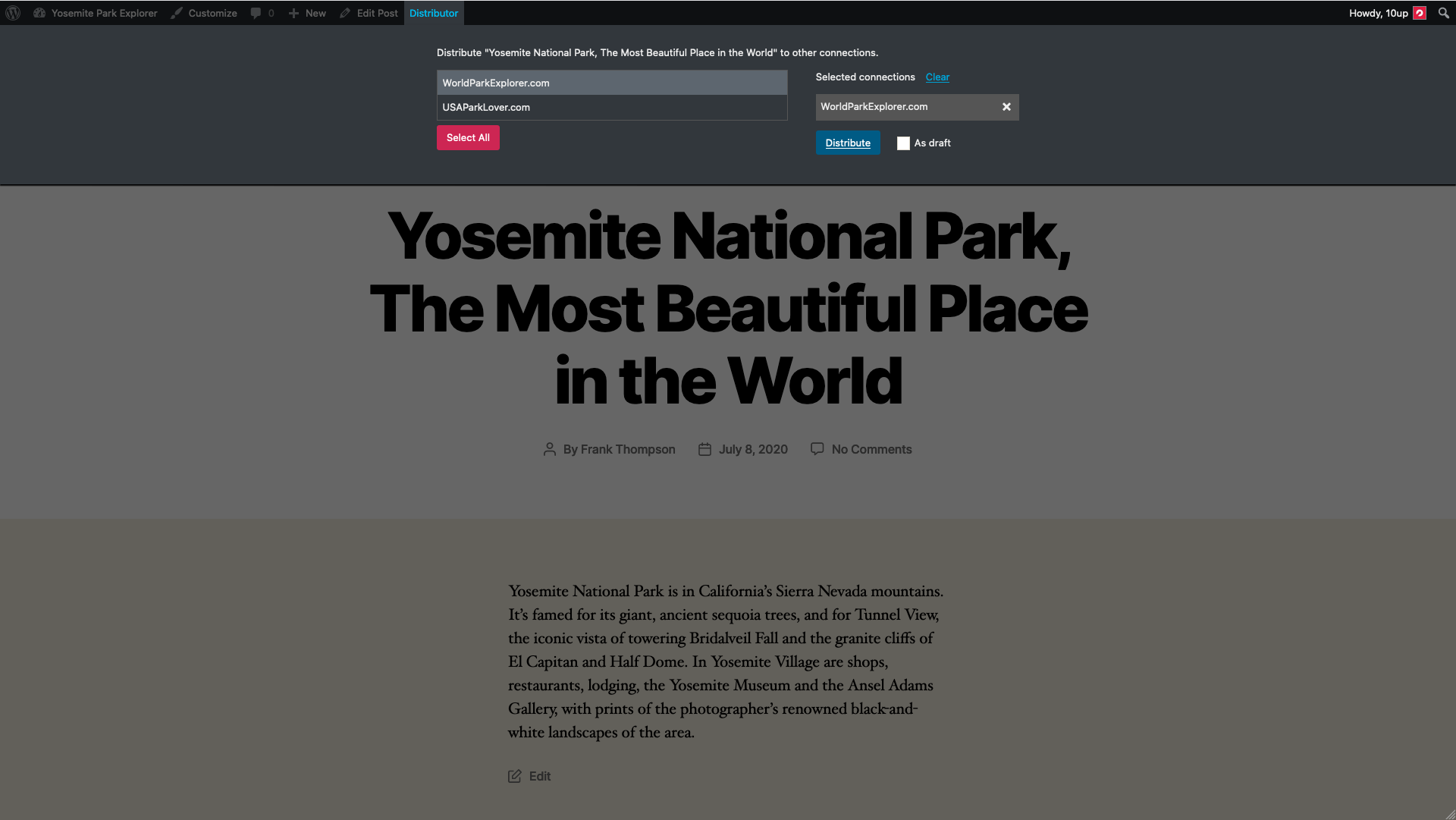
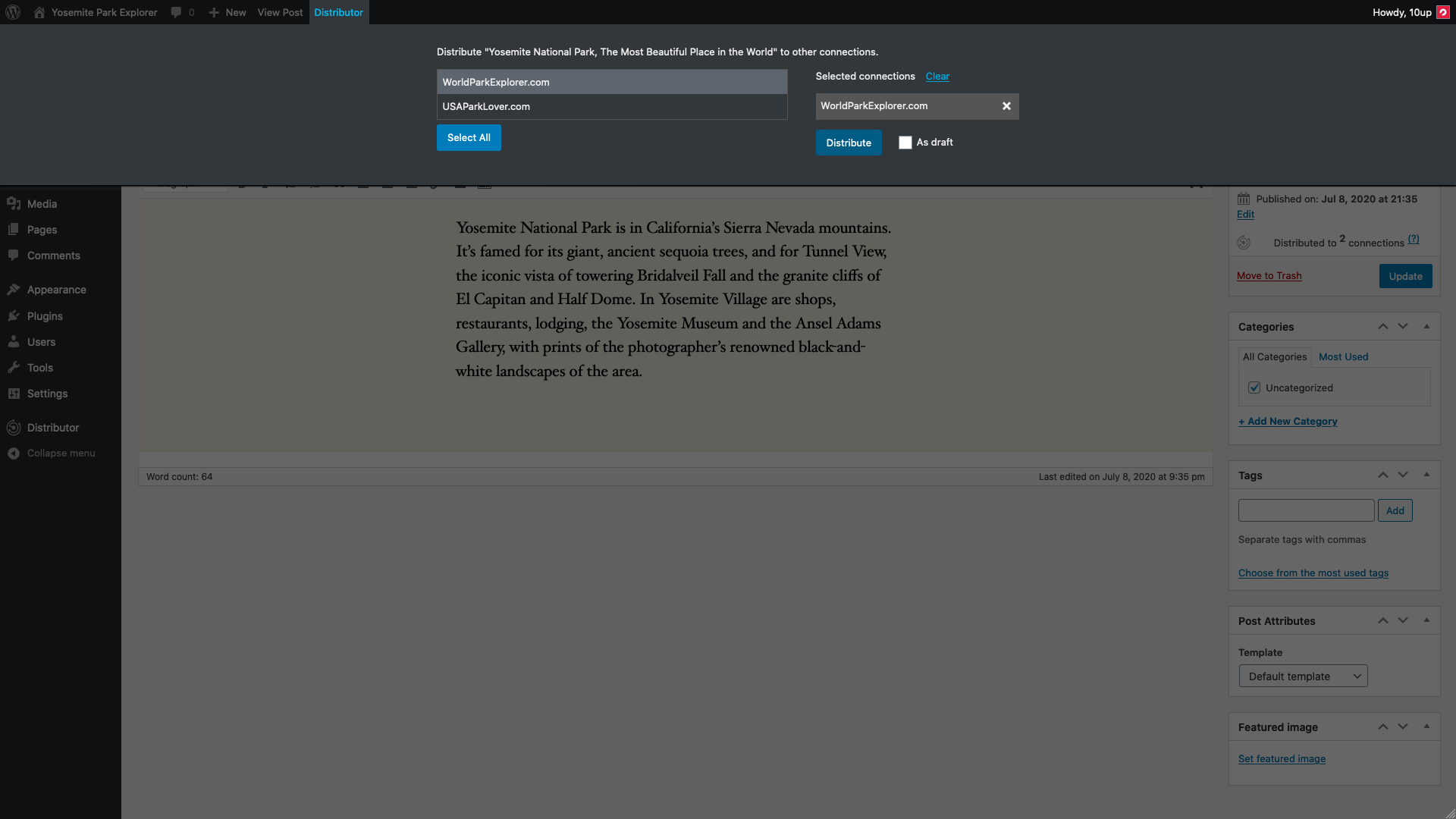
The Distributor menu in the WP Admin Bar will appear after a piece of content has been published. Hovering over that menu item will expose the Push menu that displays the list of connected sites on the left, the list of sites that have been selected for push distribution on the right, and a button to Distribute the content to those selected sites.
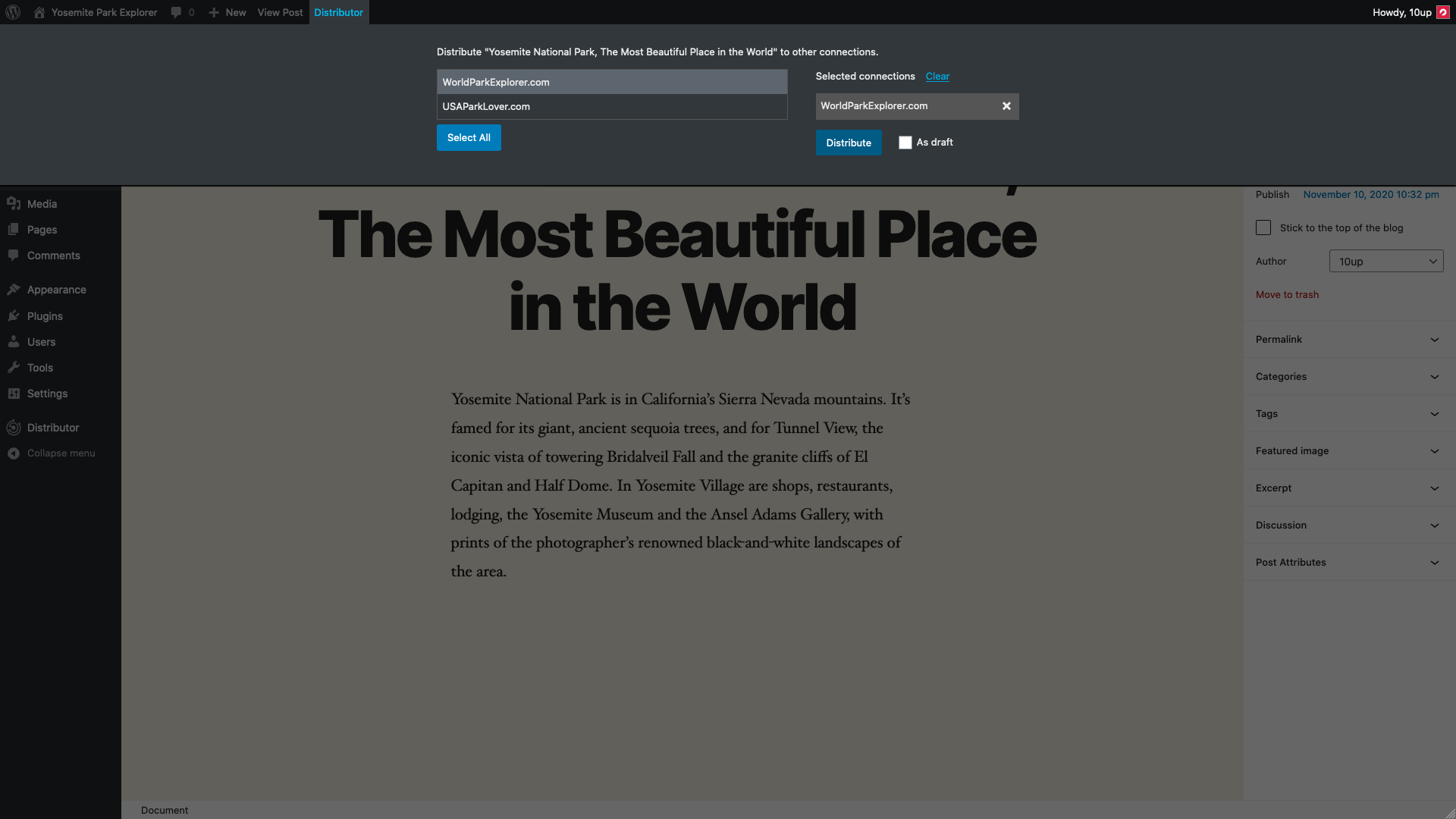
The same Push menu and set of Distributor options are also available after publishing a piece of content within the WordPress Block Editor.
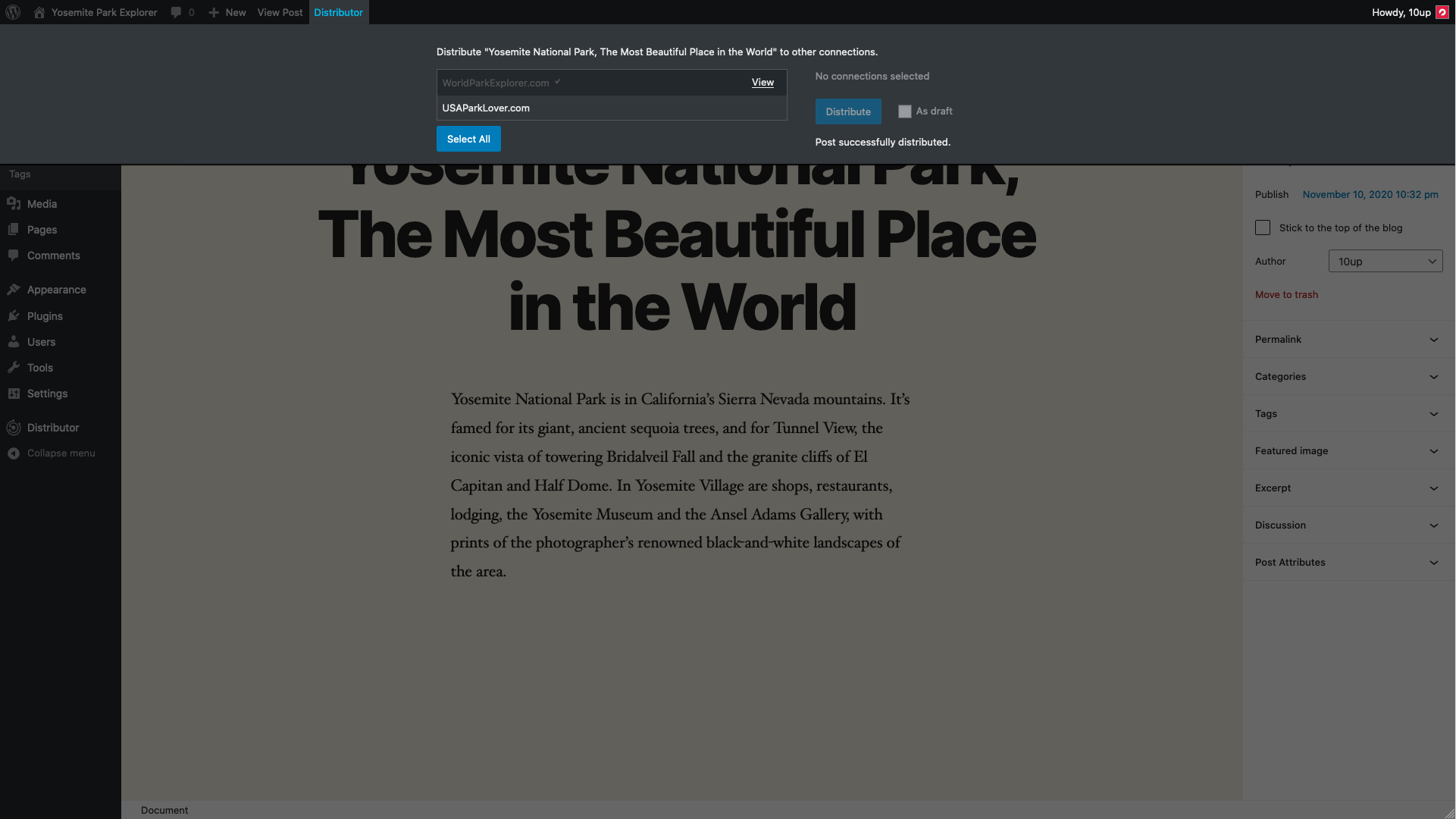
After you click the Distribute button, Distributor will push the content to the selected connected sites, showing a View link when those pieces of content have been distributed, and noting Post successfully distributed. once the content has completed distributing to selected sites.
When viewing that piece of content in the Block Editor, there will be a Distributor notice in the Status & visibility section noting how many sites the content has been distributed to.
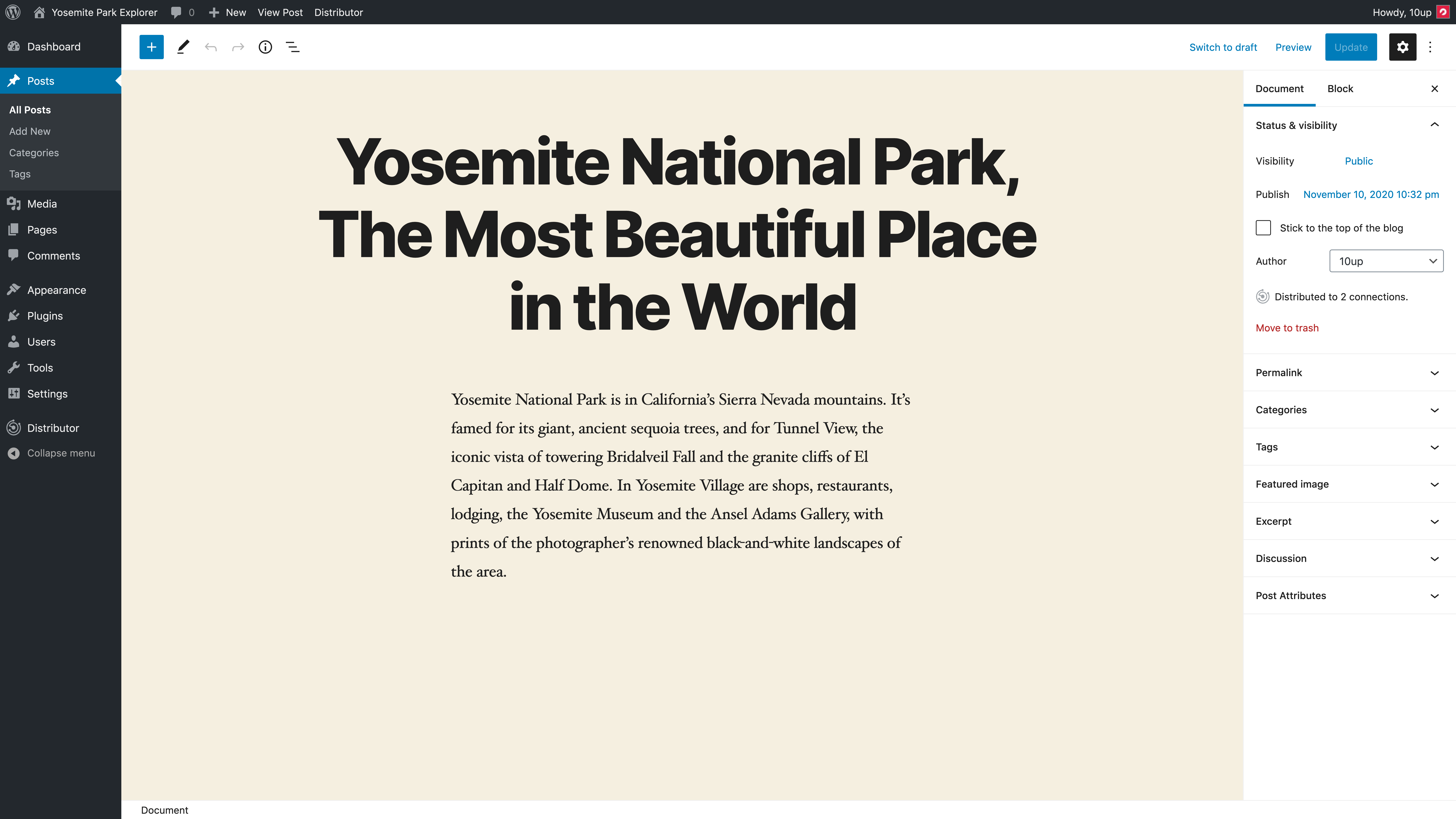
The same Push menu is available in the WP Admin Bar if you are using the Classic Editor. The Distributor notice is also available in the Publish metabox noting how many sites the content has been distributed to.
Pulling Content
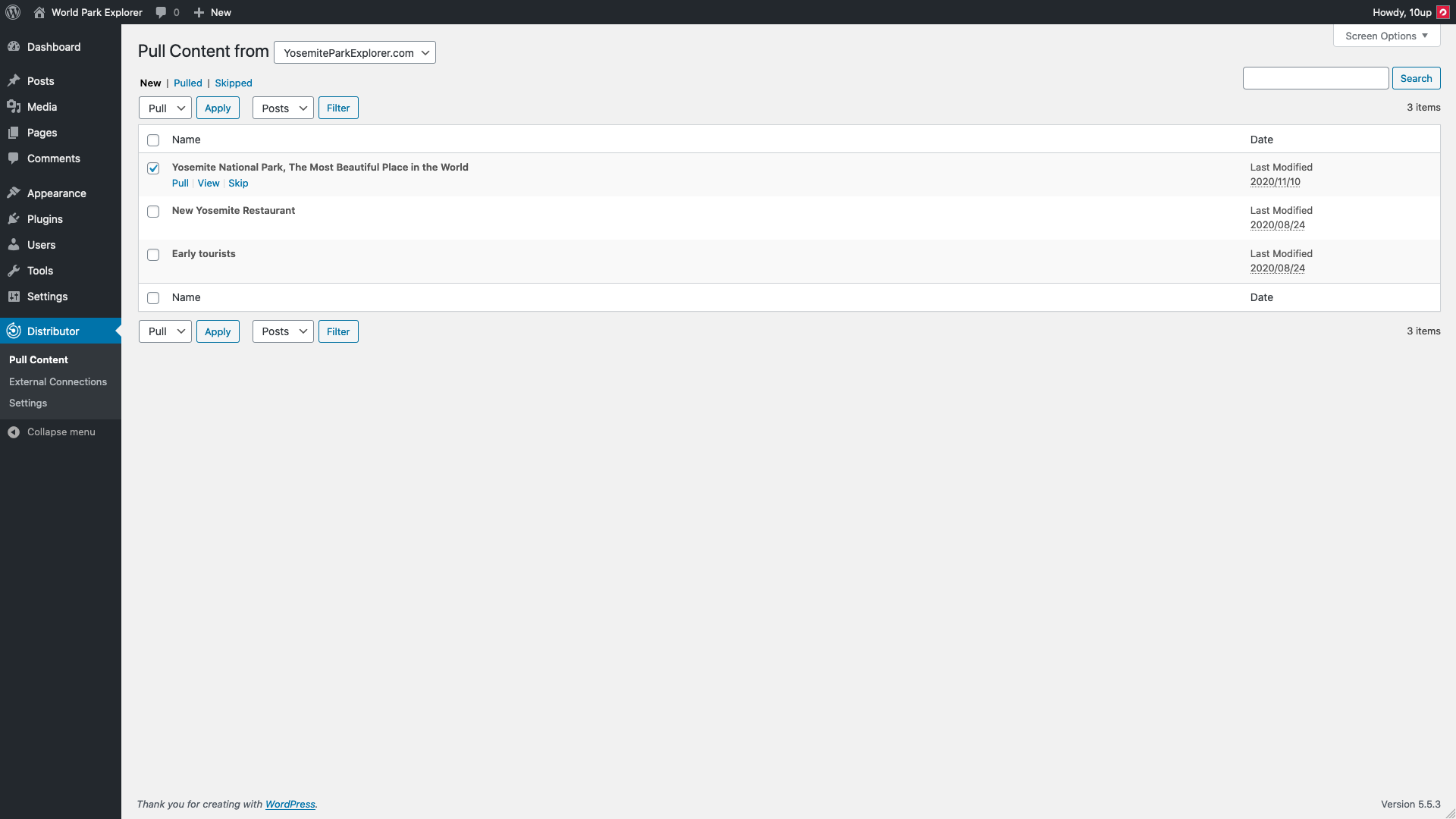
Navigating to the Distributor > Pull Content screen in the WP Admin will present you with a dropdown to select any of the sites you are connected to and will display all available pieces of content that can be Pulled into the current site. You can select Posts, Pages, and other Custom Post Types to filter on this screen; you can use the Bulk Edit menu to Pull or Skip more than one piece of content at a time; and you can use individual row actions on each piece of content pull, view, or skip each piece of content.
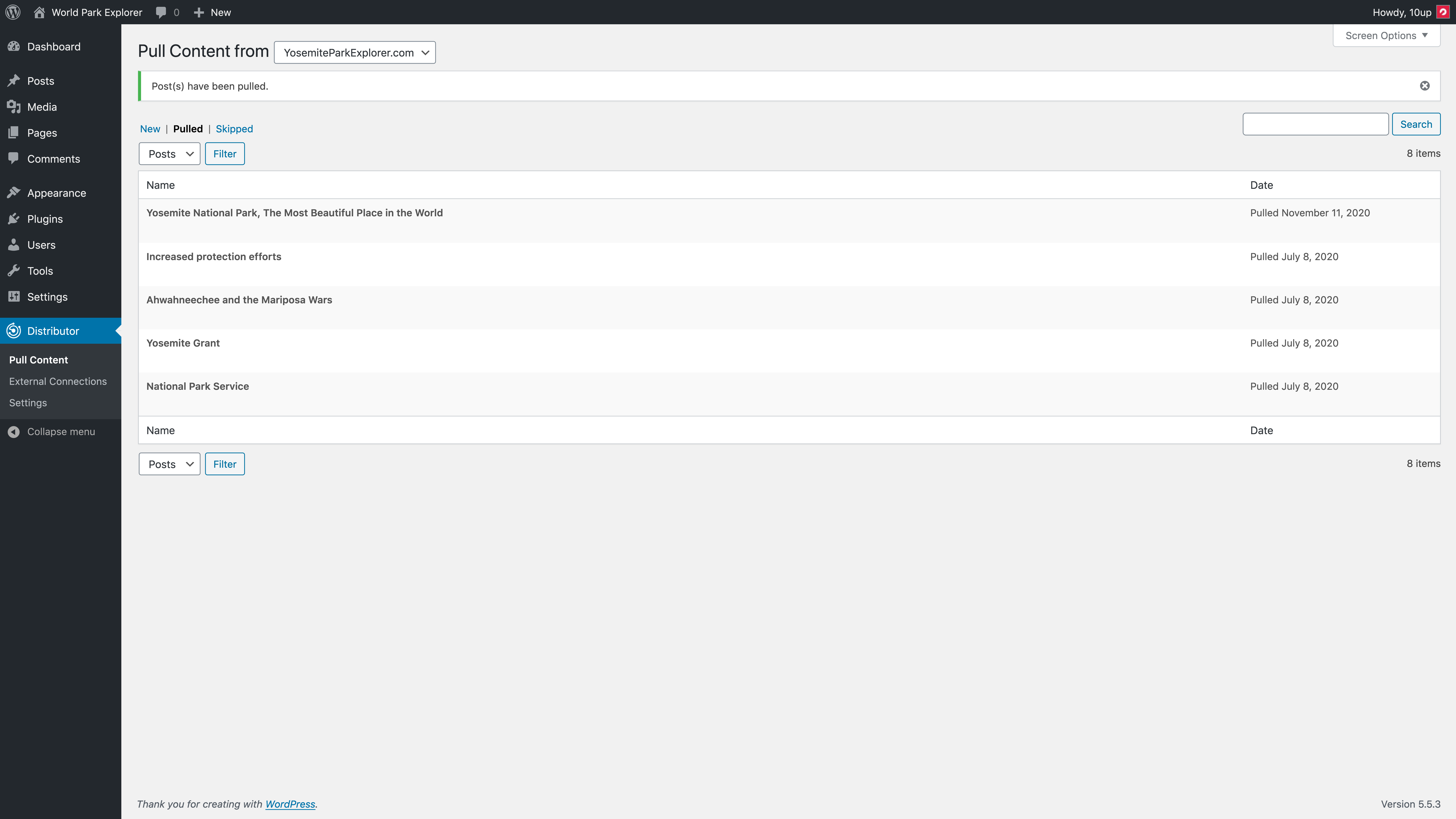
After you have Bulk Pulled several pieces of content or used the row actions to Pull a single piece of content, the Pull Content screen will show a confirmation message that the Pull action was successful and redirect you to the Pulled list view to see all the items that have been pulled into the current site. The same process will happen if you opt to Skip specific piece(s) of content.
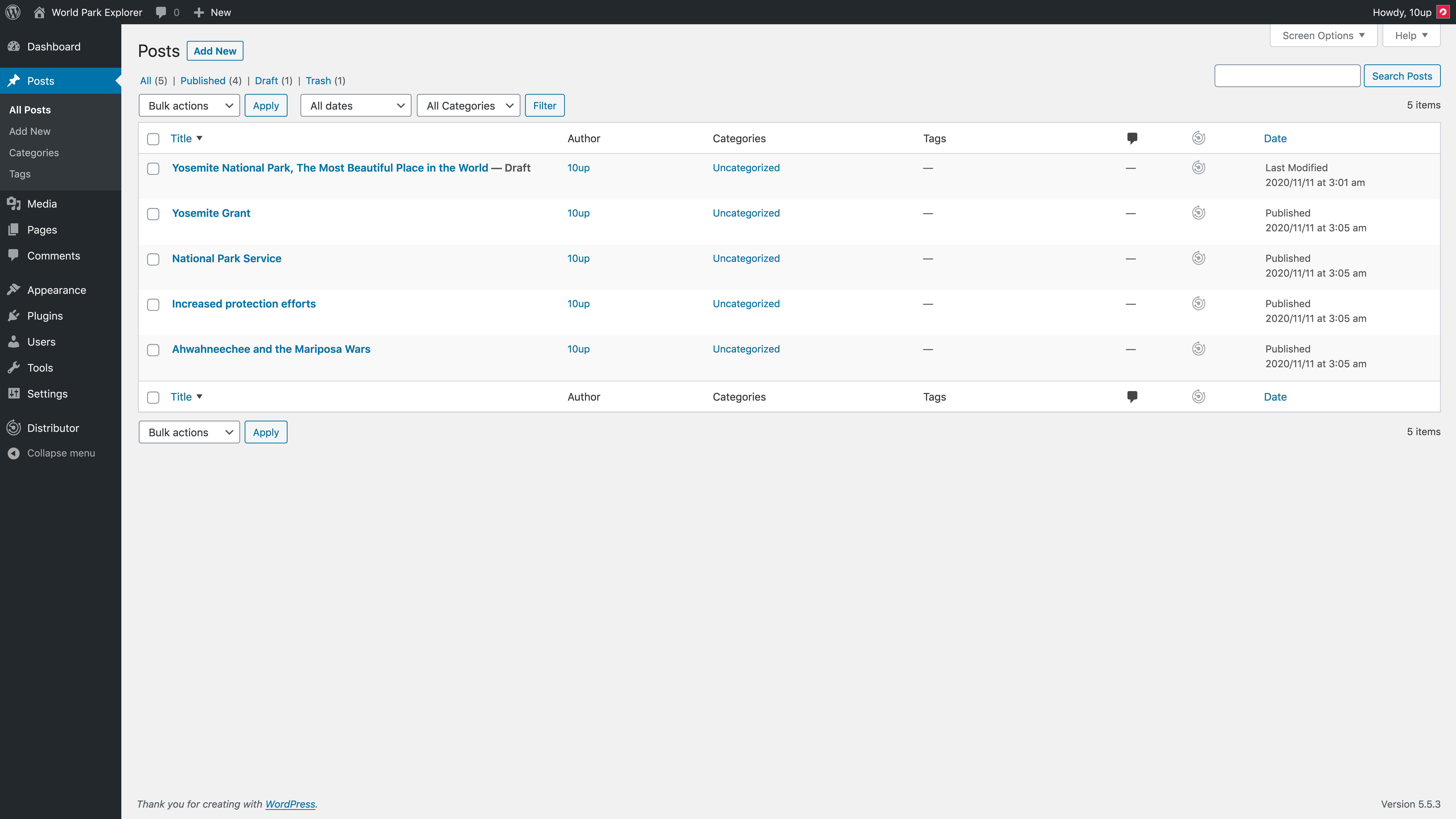
You can navigate to the Posts > All Posts table list view to see all content that has been pushed or pulled to the current site via the Distributor column denoted with the Distributor icon. Rows that include the Distributor icon will link off that icon to the origin site and post where that content was either pushed or pulled from.